Documenting evidence
How to Timestamp Photos on iPhone and Android (3 Ways)
How to timestamp photos on iPhone and Android: add a visible date stamp, see when a picture was taken and learn which timestamps others can actually check.
You can timestamp photos in three ways. Your phone already saves the date and time invisibly in every picture, and on an iPhone you see it by swiping up on the photo. For a visible date stamp, use the watermark setting on many Samsung Galaxy phones, a timestamp camera app or the text tool in your photo app. If someone else has to trust when a photo was taken, neither is enough on its own. For that, use signed provenance data or a check code, which make later changes visible.
The difference matters as soon as there's a dispute, like a scratch on a rental car at the return lane or a crushed box on your porch. A printed date looks convincing, but anyone can add one later in any photo editor. At TrustCamera we're building a camera app for photos anyone can check, so we think a lot about what a timestamp proves and what it doesn't. Below you'll find the three kinds side by side, with steps for iPhone and Android as of September 2026.
Timestamp photos: three kinds compared
Not all timestamps are equal. The capture date in a photo's metadata is recorded automatically, but it stays hidden and takes seconds to edit. A visible date stamp is obvious to anyone, yet just as easy to add after the fact. Only signed provenance data or a check code makes later changes detectable, and that's what counts when other people need to believe you.
| Capture date in the metadata | Visible date stamp | Signed provenance or check code | |
|---|---|---|---|
| How it's created | automatically with every shot, based on the device clock | a camera setting, a timestamp app or a text tool after the fact | at capture by the camera or app, secured with cryptography |
| Who sees it | anyone who opens the photo info | anyone who looks at the picture | anyone who checks it with a suitable tool or with a code in a browser |
| How easy it is to change | seconds, in the photo app or a metadata editor | one text box in any photo editor | later changes show up when it's checked |
| When it gets lost | often when sent through messaging apps | only by cropping or retouching | when the signature is stripped or nobody checks |
| Most useful for | your own photo library | orientation, prints, memories | showing others, such as a landlord or rental company |
You've been using the first kind for years, even if you never noticed. The second is what most people mean when they ask how to timestamp a photo. Signed provenance is newer and far from available on every phone. For the bigger picture, including what makes photos persuasive in a dispute, read our guide to photos as evidence.
How to see the timestamp on iPhone photos (and Android)
The capture date lives in the photo's EXIF data, which your phone or camera writes into the file with every shot. You don't need an extra app to read it. On Windows, right-click the file, choose Properties and look for Date taken on the Details tab. On a Mac, use Preview or press Command-I in Photos. For every field and how to strip your location before sharing, see our guide on how to see photo metadata.
On an iPhone
Yes, you can see the timestamp on iPhone photos. Open the picture in the Photos app, then swipe up or tap the Info button. According to Apple's guide to photo and video information, you'll see the device, the date and time the photo was taken and, depending on the photo, where it was taken. Tap Adjust to change the date, time or location, even for a batch of photos. Revert brings back the original date.
On Android
In Google Photos, open the picture and tap More, then About, or simply swipe up. Next to the date and timestamp you can tap Edit and choose a new date and time, though only for backed-up photos, according to Google Photos Help. Google adds a caveat: if you share the photo to other apps or download it, it may show the original date and time saved by your camera. Manufacturer gallery apps usually have a similar Details or Info option.
Two things can throw off the result. The capture date comes from the device clock, so if the clock was wrong, the timestamp is too. And many messaging apps strip metadata when you send a picture, so the copy you received may say nothing about when it was taken. If the metadata is gone, a reverse image search can at least show where the photo appeared online before.
How to timestamp photos with a visible date stamp
If you want the date right on the picture, say for a scrapbook or a record of a contractor's work, you have three options. Some camera apps can stamp the date and time as you shoot. Timestamp apps do the same, often adding an address or a note. And you can type the date onto any photo later with a text tool. In the finished picture, all three look alike.
Samsung Galaxy: turn on the watermark
On many Samsung Galaxy phones, the feature is built into the camera, depending on the model and software version. According to Samsung's support guide, you open the Camera app, tap the settings icon and turn on Watermark. The watermark shows your phone's model name, which you can edit. You also choose whether the date and time appear and pick the font and alignment. Samsung warns that once a watermark has been applied to a photo, it can't be deleted.
iPhone: add the date with Markup
As far as we know, the iPhone Camera app doesn't print the date onto the picture, and Apple's Camera guides don't list such a setting. You can add it afterward, though. The Photos app includes Apple's Markup tools, which let you add text, shapes and stickers to images, according to Apple's Markup guide. Look up the capture date in the photo info first, then type it in as text.
Android and Pixel: add text in Google Photos
On a Pixel or any other Android phone with Google Photos, open the picture, tap Edit and then Markup. Tap Text, type the date and time, then drag the text box where you want it. If you tap Save as copy, the original stays untouched, as the same Google Photos Help page explains. That comes in handy if you later want a version without the stamp.
Timestamp photo apps
For both iPhone and Android, app stores offer plenty of timestamp cameras. A typical timestamp photo app burns the date and time into the image as you shoot, and many add an address, GPS coordinates or a note. For your own records, that's convenient. What you usually can't see from the outside is where the app gets its time and location, or whether it uploads your pictures to its own servers. Read the privacy policy and check the permissions before you install one.
Why timestamps on photos are easy to fake
A visible stamp is just text in the picture. Whether it appeared at the moment of capture or was typed on a week later, the person looking at the photo can't tell. Even a stamp that the camera adds itself usually takes the time from the phone. And that time can be set by hand: according to Apple, you turn off Set Time Automatically and then set the date and time yourself.
The capture date in the metadata isn't much better. As shown above, the Photos app and Google Photos let you adjust the date and time themselves. Free metadata editors rewrite the fields directly in the file, leaving nothing a regular person would notice. That doesn't mean every date is a lie. It means that anyone who doubts you can easily call either kind of timestamp into question.
What can be revealing are contradictions. A stamp that doesn't match the capture date in the metadata is a reason to ask questions. So are shadows that don't fit the stated time of day or weather that doesn't fit the date. To spot retouching in the image itself, see our guide on how to tell if a photo is photoshopped.
How to remove a date stamp from a photo
A visible stamp that the camera burns in as you shoot is hard to get rid of. It's part of the pixels, and Samsung says its watermark can't be deleted once applied. That leaves cropping or retouching, and both change the photo. If you're not sure you want the date on the picture for good, add it to a copy afterward and keep the original.
If you typed the date on yourself in a photo app, it's easier. On an iPhone, open the edited photo in Photos and use Revert to Original. In Google Photos, the help page says to tap Edit, then Revert. That doesn't work for a picture you made with Save as copy, but in that case your original is still there anyway.
You can adjust the capture date in the metadata in Photos on the iPhone or in Google Photos, as described above. To share a photo with no metadata at all, create a stripped copy, for example with File Properties on Windows, as our guide on how to see photo metadata explains. That copy also loses the camera data and location. For pictures you may need as a record later, always keep the original file with all its details.
Signed timestamps: Content Credentials and Apple Reference Image
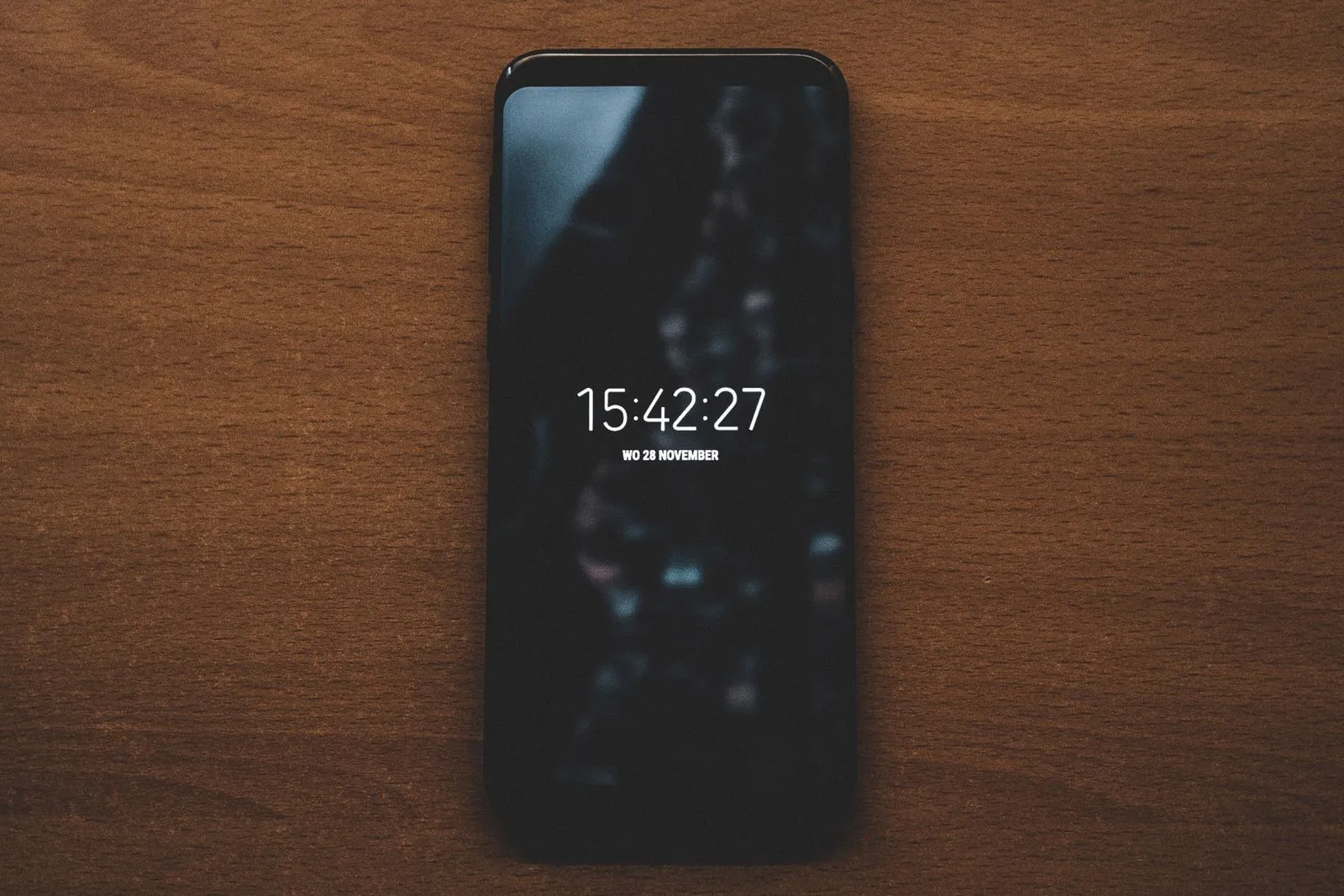
The third kind of timestamp is created at capture and secured with cryptography. Under the open C2PA standard, this information is called Content Credentials. In Google Photos, you find it in the About panel, in a section called How this was made. According to Google's help page on Content Credentials, a default Pixel 10 capture reads "Media captured with a camera," and a tampered history triggers an "Incorrectly modified" error. The same page notes that this information doesn't tell you whether a photo is real or fake.
For the capture time, one detail matters, and Google describes it in a security blog post on the Pixel 10. Pixel Camera adds Content Credentials to every JPEG photo it captures. The phone signs the timestamp the moment you press the shutter, even offline, using a protected clock. According to Google, that clock is completely isolated from the one you can set yourself in Android. Changing the phone's clock therefore doesn't change this timestamp.
Apple has taken its own route with the iPhone 18 Pro and iPhone 18 Pro Max. In the opt-in Reference mode, the camera captures signed sensor data with a secure timestamp, according to Apple's support article on Reference Image. You then develop it in Photos into a reference image that you can compare with the regular photo to spot edits such as a crop or a change made with generative AI. Viewing reference images requires iOS 27, iPadOS 27 or macOS 27 or later.
All of these have one limit. Strip the signed data and you strip the proof along with it. A photo without Content Credentials isn't suspicious, just unverified. And the person on the other end has to check the information, or even the best timestamp goes unnoticed.
Which timestamp is good enough for what?
For your own photo library, the capture date in the metadata is plenty. Photos and Google Photos sort your pictures by it, and nobody needs convincing about your vacation. A visible stamp is a matter of taste here. It mostly helps with prints, because the metadata date doesn't end up on paper by itself.
It's different when you need to show someone else what condition something was in. Typical cases are returning a rental car, covered in our guide to rental car damage, a package that arrived damaged or a move-in inspection with your landlord. In a dispute, the other side may question exactly when your photo was taken. A printed date won't settle that. In our view, these steps help more:
- Shoot on the spot: start with a wide shot that shows the place and the item, then close-ups of every bit of damage.
- Send right away: email the photos to the rental company, landlord or seller the same day, or upload them to their claims portal. Their records then show you had the pictures by that time at the latest.
- Send files: share original files, not screenshots, and don't rely only on messaging apps that strip metadata.
- Keep the originals: store the unedited files in a second place, such as a cloud backup.
- Add context: a signed checklist, a written confirmation or a witness often carries more weight than any date.
Whether that's enough in a dispute can't be predicted. How an insurer, a claims adjuster or a court weighs photos depends on the case, and a timestamp is one piece among several. For larger amounts, talk to your insurer, a consumer attorney or your local legal aid office.
TrustCamera: make the capture time checkable with a check code
This gap is exactly why we're building TrustCamera. You take photos and videos directly in the app, and pictures from your gallery can't be uploaded. Every capture gets a check code. Anyone with the code can check for free in a browser, without an account, that the file hasn't changed since capture, when it was taken and roughly where. The location is accurate to about 6 miles (10 km), never the exact spot.
Here's the difference from a printed date: at capture, TrustCamera stores a digital fingerprint of the file together with the capture time. If the file is changed later, it no longer matches that fingerprint. So share the code right away, for example with the rental company or your landlord, so they can check it straight away. Hold on to your own copies of the photos, too.
Know the limits, though. The check code shows that the file is unchanged, not whether a scene was staged or something was kept out of frame. It won't decide a dispute, but it can help as a record of what you captured and when. The app is coming soon for Android and iOS.
Frequently asked questions about timestamps on photos
What is a timestamp on a photo?
It's the date and time a picture was taken. Every phone saves one invisibly in the file's metadata, and you can view it in the photo info. Some cameras and apps also print it visibly onto the image. A third kind, signed provenance data, is secured with cryptography so that later changes can be detected when someone checks it.
Can you tell the date a picture was taken?
Usually, yes. The Photos app on iPhone, Google Photos and the file properties on a computer show the capture date from the metadata. It comes from the device clock and can be edited. If the metadata was stripped, for example by a messaging app, you can't reliably tell the date from the file anymore.
How do I timestamp my photos on iPhone?
As far as we know, the iPhone Camera app doesn't print the date onto pictures. It only saves the date in the metadata, which you see by swiping up in Photos. To make it visible, add it as text with Markup in the Photos app or use a timestamp camera app that stamps pictures as you shoot.
Which timestamp photo app should I use?
If you have a Samsung Galaxy, check the Camera app's settings for the built-in watermark first. On other phones, a timestamp photo app from the app store can stamp the date, time and often the location. Check what permissions it asks for and what it does with your pictures. For proof others can check, look for signed provenance instead.
Can a photo timestamp be faked?
Yes, both common kinds can. You can adjust the capture date in the metadata right in Photos on the iPhone or in Google Photos. A visible stamp is just text in the picture and can be added with any photo editor. Signed provenance data is harder to fake, because later changes show up when someone checks it.
How do I print photos with the date on them?
The metadata date only shows up on a print if it was added to the picture first or the print service offers to include it. So type the date onto a copy with a text tool before you order, or use a watermark when you take the picture. Or ask your print service whether it can print the capture date on the front or back.
Why does my photo show the wrong date?
There are a few possible reasons. The capture date comes from the phone's clock, so if the clock was off or set to the wrong time zone, the date in the photo is off too. Pictures from messaging apps often have no metadata left, so your gallery may sort them by the day you saved them. And after you change a date in Google Photos, downloaded copies may show the original camera date again, according to Google.
Conclusion: timestamp photos in a way others can check
It's easy to timestamp photos. Your phone saves the capture date anyway, and a visible stamp takes a camera setting, a timestamp app or a text tool. For your photo library and your prints, that's all you need.
If you need to show someone else when a photo was taken, other things matter: pictures you send right away, original files, a signed checklist and provenance data that can be checked. The sooner the other side has your photos in hand and can verify them, the less room there is to doubt when they were taken.
About the author

Co-founder & Marketing at TrustCamera
Yannick is a co-founder of TrustCamera and leads marketing and content. He holds a bachelor's and a master's degree in business and has worked in content marketing and SEO for years.