Fake photos & AI images
How to Tell If an Image Is AI Generated: 6 Signs and 4 Tools
Can you tell if an image is AI generated? Often, but never for sure. Check visual errors, AI labels and provenance data, and know what to do when in doubt.
The most reliable way to tell if an image is AI generated is to combine three checks. First, look for an AI label or provenance data in the file. Then scan the picture for typical errors, such as warped hands or garbled text. Finally, find out where it came from. No single check is proof on its own: an image without an AI label isn't automatically real, and one odd detail doesn't make it fake.
At TrustCamera we build a camera app that gives photos a check code at the moment they're taken. That work has shown us how little you can read from a finished image after the fact. Below are six visual signs worth checking, four tools that read an image's origin, and a plan for when doubts remain.
How to tell if an image is AI generated: a 5-step checklist
To tell if an image is AI generated, check labels, provenance data, visual errors and context, in that order. Each step catches different fakes, and none catches them all. The quick checks come first. Slower ones matter when the image really counts, for example before you send money or share a viral picture.
- Look for an AI label: Does the post carry a tag like "AI info," or does the image show a visible watermark?
- Read the provenance data: Upload the image to a Content Credentials checker.
- Check for watermarks: Ask Gemini or OpenAI's verification tool whether the image came from their AI.
- Hunt for visual errors: Zoom in and study hands, text, lighting and background.
- Check the context: Run a reverse image search, look at the source and ask questions.
AI images are only one kind of fake. If you want to check a photo more broadly, including for classic editing, our guide on how to tell if a photo is real covers seven methods and what each one can't prove.
Why your eyes alone aren't enough anymore
Most people trust their gut to tell if an image is AI generated. A large experiment by Microsoft's AI for Good Lab shows how shaky that is. More than 12,500 people rated about 287,000 images in the online game "Real or Not" and were right only 62 percent of the time. Pure guessing would get 50 percent. Portraits of people were the easiest to judge, while landscapes and city scenes were the hardest.
The researchers themselves say their results probably overstate how well people do today, because newer generators produce even more realistic images. Classic errors that many guides point to are becoming rarer as a result. Looking closely still pays off, since plenty of AI images in your feed don't come from the newest models. Just don't make your eyes the only test.
Step 1: Look for AI labels and visible disclosures
The fastest way to tell if an image is AI generated takes seconds: look at what surrounds it. Some generators stamp a visible logo in a corner. Many users tag their images with hashtags like #aiart or say so in the caption.
On Facebook, Instagram and Threads, Meta adds an "AI info" label. According to Meta's explanation of its AI labels, the label appears when Meta detects industry-standard AI signals in the file or when people disclose that they're posting AI-generated content. For images fully generated by AI, it shows directly on the post. If an image was only edited with AI, the label moves to the post's menu.
The law is starting to help, too. California's AI Transparency Act became operative on August 2, 2026, after AB 853 moved the date. It requires generative AI providers with over one million monthly users to embed hidden disclosures in the images they create and to offer a free tool that detects them. Starting in 2027, large online platforms will also have to detect provenance data and make it visible to users.
Don't count on labels, though. Machine-readable marks often live in the metadata, which can get lost when someone takes a screenshot or shares the file (more on that in step 2). Open-source models can run without any marking at all, and someone using an AI image to scam you won't follow the rules anyway. A label is strong evidence of AI. A missing label is no evidence of anything.
Step 2: Check Content Credentials and invisible watermarks
If there's no visible hint, look inside the file. Many AI companies embed provenance data or an invisible watermark there. Four tools can read them, each with its own strength.
Read Content Credentials
Content Credentials are signed records based on the open C2PA standard. They document which program created an image, how it was edited and whether AI was involved. Upload the image to Content Credentials Verify. If the file carries credentials, you'll see who issued them and which steps the image went through. If the tool finds nothing, the file simply has no credentials, or no longer has them.
Content Credentials aren't the same as the EXIF data that almost every camera stores. To read the camera model, date and location yourself, see our guide on how to see photo metadata.
Check for a SynthID watermark in Gemini
Google marks images from its AI models with an invisible watermark called SynthID. According to Gemini Apps Help, you upload the image to Gemini and ask something like "Was this created or edited by Google AI?" If Gemini finds the watermark, all or part of the image came from Google's AI. A negative result only rules out Google's AI, so the image may still come from another system. You need to be signed in, and the file can't be larger than 100 MB.
Use OpenAI's verification tool
OpenAI's help center says that images made with ChatGPT, Codex and the OpenAI API usually carry both Content Credentials and a SynthID watermark. At openai.com/verify you can check an image for these signals. A negative result doesn't clear the image here either. OpenAI lists the reasons itself: the image may predate the signals, its metadata may have been stripped during upload, editing or sharing, or compression and cropping may have degraded the watermark. The tool also isn't designed to detect images from other AI services.
Try "About this image" on Google
Google Images and Google Lens offer a feature called "About this image." Google Search Help explains that it shows when Google may have first seen similar versions of the picture. Where the details exist, it can also tell you whether an image was captured with a camera or generated with AI. Google itself warns that this metadata can be modified and that the feature is only available in some regions.
Step 3: Spot the 6 visual signs of an AI-generated image
If the file stays silent, you'll have to tell if an image is AI generated by looking at it. Open it at full size on a large screen and work through it section by section. These six areas are where AI errors often show up.
1. Hands, fingers and teeth
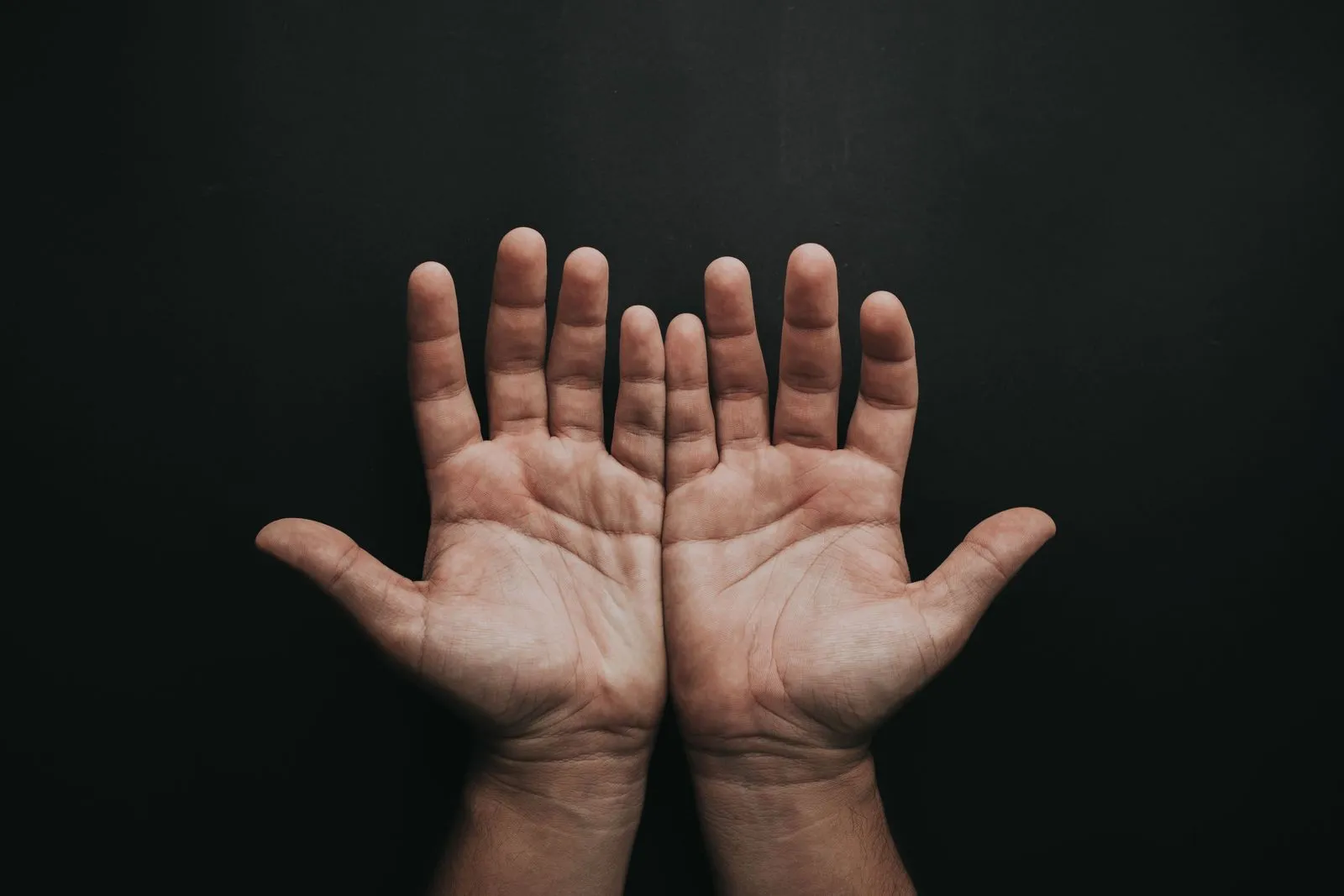
Count the fingers. AI images regularly show six fingers, fused joints or hands that melt into objects. Teeth sometimes look like one continuous white strip. Newer models make these errors less often, but hands that grip something or cross each other still deserve a close look.
2. Text, logos and numbers
Signs, labels, license plates and book spines in the background have long been a weak spot for AI generators. Look for letters that almost look right but don't form words, and for slightly warped brand logos. Current models often get large headlines in the foreground right. Errors are more likely in the small print near the edges.
3. Light, shadows and reflections
AI generators don't simulate real light. They assemble images from learned patterns. That's why shadows sometimes fall in different directions, or a person is brightly lit while the rest of the scene sits in dim light. Check reflections in windows, glasses and water: do they really show what's in front of them?
4. Background and objects
Ask whether each object would actually work. Typical giveaways are glasses without temples, railings that end in midair, chairs with too many legs and people in the background with smeared faces. On a phone screen these errors are easy to miss. Zoomed in, they stand out quickly.
5. Skin, hair and surfaces
Many AI portraits have a glossy look: skin without pores, perfectly even light, hair that blends into the background. On its own this is weak evidence, because beauty filters and retouching create a similar look. To learn how to spot real photos that were altered after the fact, read our guide on how to tell if a photo is photoshopped.
6. Jewelry, patterns and pairs
Generators often lose track of things that come in pairs or repeat. Earrings don't match, eyeglass lenses have different shapes, plaid patterns break off in the middle of a shirt and buttons sit in impossible places.
One error proves little. Real photos have blur, compression artifacts and odd coincidences, too. The case only gets strong when several signs add up. On the flip side, an image without a single visible flaw can still be AI generated.
Step 4: Check the context and the source
Often the story around a picture is the best way to tell if an image is AI generated. Start with a reverse image search, as explained in our guide on how to reverse image search. If the same picture showed up earlier in an AI art gallery, a forum or with a different story, you usually have your answer. A freshly generated image won't turn up, though, so no match is no clean bill of health.
Next, look at the sender. How old is the account, do the other photos fit together, and does the picture exist anywhere else? For news images, ask whether established outlets are reporting on the event. A spectacular photo that nobody else covers should make you pause.
On Facebook Marketplace or dating apps, you can ask for more. A photo with a handwritten note showing your name and today's date used to be a solid test. Because current generators can now render legible text, an in-person viewing or a short video call tells you more. Video can be faked as well, though. Our guide on how to spot a deepfake explains what to watch for in moving images and cloned voices.
AI image detectors: why an online check isn't a verdict
For a quick check, there are websites and apps that promise to tell if an image is AI generated. You upload a picture and get a percentage for how likely it is to be AI. That looks objective, but it only partly is. A detector learns from sample images of known generators. Images from new models, heavy compression, cropping or a screenshot can flip its result.
That's why we treat detectors as a second opinion at most. Even Google and OpenAI only promise to recognize images from their own models, as described in step 2. A third-party AI image detector that claims to spot every generator is making a much bigger promise. If one says "likely AI," take a closer look. "Likely real" doesn't clear the image, and when two detectors disagree, you know as much as before.
Also, don't upload private photos of other people to services you don't know. You can't tell what happens to the images there.
AI image, deepfake or edited photo: what's the difference
Not every fake picture is an AI image, and the difference decides which test helps. An AI image is created entirely by a generator, often from a text prompt, and shows a scene that never existed. A deepfake usually shows a real person in a video, photo or audio clip that never happened that way. An edited photo started out real and was changed afterward, traditionally in Photoshop and increasingly with AI tools built into phones.
The lines are blurring. Many smartphones can now remove objects with AI. For you, that means a note about AI editing doesn't automatically make a photo fake. What matters is whether the change affects what the image claims to show. A trash can erased from a beach photo is not the same as a scratch added to a rental car.
Not sure if an image is AI or real? What to do next
If doubts remain after all the steps, treat the image as if it could be fake. That's not distrust of people, just caution with decisions you can't undo. Three rules help:
- Don't pay, don't share: Never send money based on an image you can't place, and hold off on sharing viral pictures until the source is clear.
- Ask instead of guessing: Request an in-person viewing, a video call or more photos from other angles.
- Report it: Use the platform's report button when a profile or listing deceives with AI images, and report fraud to the FTC if you lost money.
The FTC gives a concrete example in its alert on pet scams. Scammers use stolen or AI-generated images of pets that are supposedly up for adoption, and they may even use AI to fake photos of your own lost pet in distress. The FTC recommends a reverse image search and asks people to report such scams at ReportFraud.ftc.gov.
Proving your own photos are real instead of arguing
You can also flip the question: how do you show others that your own photo isn't an AI image? After the fact, that's hard. The origin has to be recorded when the photo is taken. There are two ways to do that: cameras and apps that write Content Credentials, and apps like TrustCamera that give each capture a check code.
With TrustCamera you take photos and videos directly in the app, and uploads from the gallery aren't possible. At capture, an AI check is meant to catch cases such as someone photographing a screen. The app stores a digital fingerprint, the capture time and the approximate location. Anyone with the check code can check the capture for free in a browser. That shows the file hasn't changed since it was taken, but not whether the scene was staged. Here's how TrustCamera works.
Frequently asked questions about AI-generated images
Can you always tell if an image is AI generated?
No. Many AI images give themselves away through errors in hands, text or lighting, but newer models make those errors less and less. In a large study, people did only somewhat better than chance. Your best bet is to combine labels, provenance data, visual clues and context.
Is there an app to check if a photo is AI?
Plenty of apps and websites claim they can tell if an image is AI generated and give you a probability, but none catches every AI image. The providers' own tools are more targeted: Gemini finds images from Google's AI, and OpenAI's verification tool finds images from ChatGPT. Content Credentials Verify shows provenance data from any provider, as long as the file contains it.
Can I check if an image is AI generated for free?
Yes. Several free tools help you tell if an image is AI generated: Content Credentials Verify and Google's "About this image" cost nothing. For the watermark check in Gemini, you need a Google account. Many AI detectors are free as well, but they only give you probabilities. Combine the tools with a close look and a reverse image search.
Do AI-generated images have to be labeled?
It depends on where they're made and published. In California, large generative AI providers have had to embed hidden disclosures in AI images and offer a free detection tool since August 2, 2026. Other states and countries have their own rules. If you need to know what applies to you, ask a lawyer.
Is an image without an AI label real?
Not necessarily. Many generators don't mark their images at all, or only started recently, and marks in the metadata often get lost in screenshots or when files are shared. Invisible watermarks can also suffer from heavy compression or cropping. A missing label tells you nothing about whether an image is real.
How can I tell if a dating profile picture is AI generated?
Watch for flawless skin, a blurry or illogical background, mismatched earrings and hair that blends into its surroundings. Check whether the profile shows other, varied photos from everyday life, and run a reverse image search. When in doubt, suggest a short video call before you invest trust or money. For red flags beyond the photo, see our guide on how to tell if someone is catfishing you.
Conclusion: to tell if an image is AI generated, collect clues
No single test can tell if an image is AI generated with certainty. An AI label or a detected watermark is strong evidence, but its absence proves nothing. Visual errors and context fill in the picture, and detectors offer a second opinion at most. Your judgment becomes solid only when several independent clues point the same way.
For your own photos, you don't have to rely on clues. When the origin is recorded at capture, anyone can check that the file hasn't changed since. That's exactly why we build TrustCamera.
About the author

Co-founder & Marketing at TrustCamera
Yannick is a co-founder of TrustCamera and leads marketing and content. He holds a bachelor's and a master's degree in business and has worked in content marketing and SEO for years.